Table of Contents
- Why Multi-Factor Authentication Setup Is Non-Negotiable in 2026
- Step 1: Enable Microsoft 365 MFA via Conditional Access
- Step 2: Enforce Google Workspace Security with MFA
- Step 3: Lock Down Slack with SSO and MFA
- Step 4: Secure Cloud Infrastructure (AWS, Azure, GCP)
- Step 5: Choose the Right MFA Method for Each Risk Level
- Rollout Best Practices: Avoiding Common Pitfalls
- Frequently Asked Questions
Compromised credentials are behind more than 80% of data breaches, according to the Verizon Data Breach Investigations Report — and yet most small businesses still haven’t enforced multi-factor authentication across every tool their team uses. This guide walks you through a practical, step-by-step MFA for business implementation across Microsoft 365, Google Workspace, Slack, and cloud infrastructure in 2026.
Why Multi-Factor Authentication Setup Is Non-Negotiable in 2026
Passwords alone are a liability. Credential-stuffing attacks, phishing kits, and AI-assisted brute-force tools have made single-factor authentication effectively obsolete for any serious business environment.
Per CISA’s guidance, MFA can block over 99% of automated account compromise attacks. That’s not a minor improvement — it’s a fundamental shift in your security posture.
Step 1: Enable Microsoft 365 MFA via Conditional Access
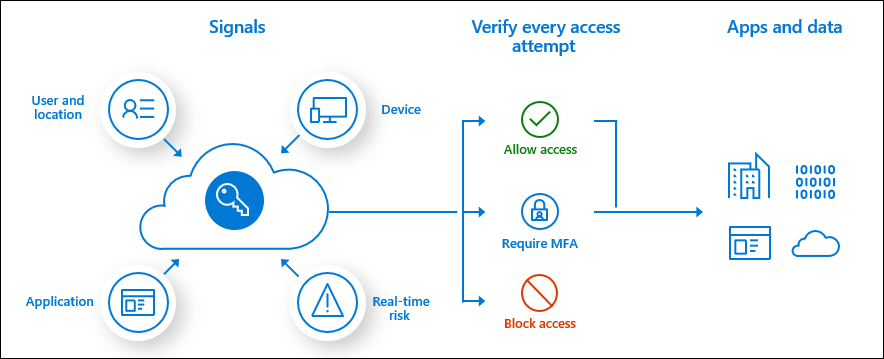
Microsoft 365 MFA is best enforced through Conditional Access policies, not the legacy per-user MFA toggle. Conditional Access gives you granular control — enforce MFA only for external networks, specific apps, or high-risk sign-ins.
How to Configure It
- Sign in to the Microsoft Entra admin center (formerly Azure AD) at entra.microsoft.com.
- Navigate to Protection → Conditional Access → Policies.
- Click New Policy and name it (e.g., “Require MFA — All Users”).
- Under Users, select All users (exclude your break-glass admin account).
- Under Cloud apps or actions, select All cloud apps.
- Under Grant, check Require multifactor authentication.
- Set policy state to Report-only first, monitor for 48 hours, then switch to On.
Step 2: Enforce Google Workspace Security with MFA
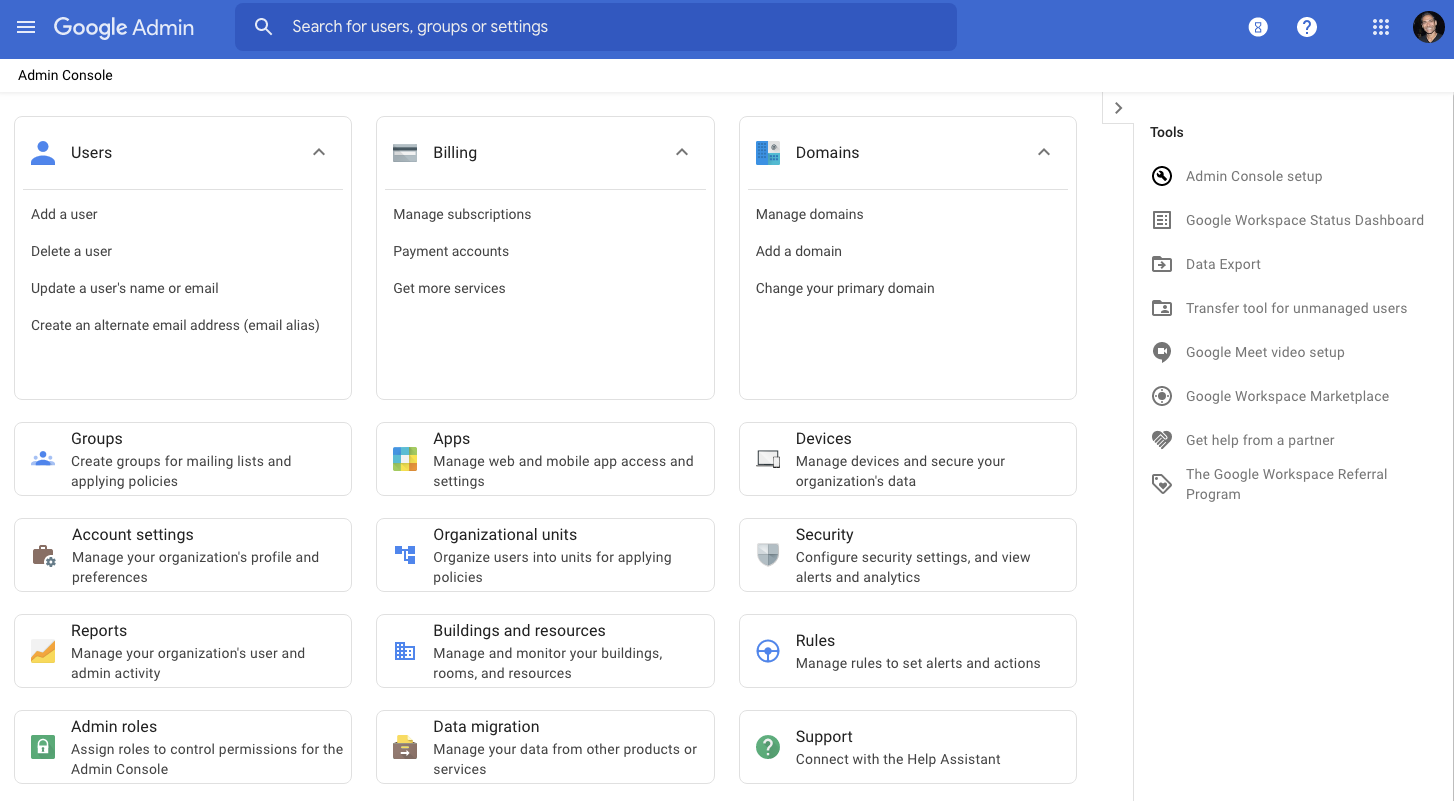
Google Workspace security gives admins centralized MFA enforcement through the Admin Console. You can mandate 2-Step Verification for all users or specific organizational units (OUs).
How to Configure It
- Go to admin.google.com and navigate to Security → Authentication → 2-step verification.
- Select the organizational unit you want to enforce (start with your top-level org).
- Under Authentication, toggle Allow users to turn on 2-step verification to On.
- Set Enforcement to On with a grace period (14 days recommended for rollout).
- Under Methods allowed, disable SMS-only options and enforce Authenticator app or security key.
- For high-privilege accounts, enforce hardware security keys (FIDO2/passkey-compatible keys like YubiKey 5 series).
In practice, disabling SMS-based 2FA for admin accounts is critical. SIM-swapping attacks have made SMS OTPs unreliable for high-value targets. Push notifications via Google Prompt or authenticator apps are significantly more resistant to interception.
Step 3: Lock Down Slack with SSO and MFA
Slack is often an overlooked attack surface. Because it contains sensitive conversations, file shares, and integrations with critical systems, it deserves the same MFA rigor as your email platform.
How to Configure It
- In Slack, go to Settings & Administration → Organization Settings → Security.
- Enable SAML-based SSO connected to your identity provider (Microsoft Entra ID or Google Workspace). This is the preferred approach — MFA is then enforced at the IdP level, not per-app.
- If SSO isn’t available on your plan, navigate to Authentication and enable Two-factor authentication required for all members.
- Set session duration to 7 days max to force re-authentication regularly.
- Disable the option for users to downgrade to email/password login once SSO is active.
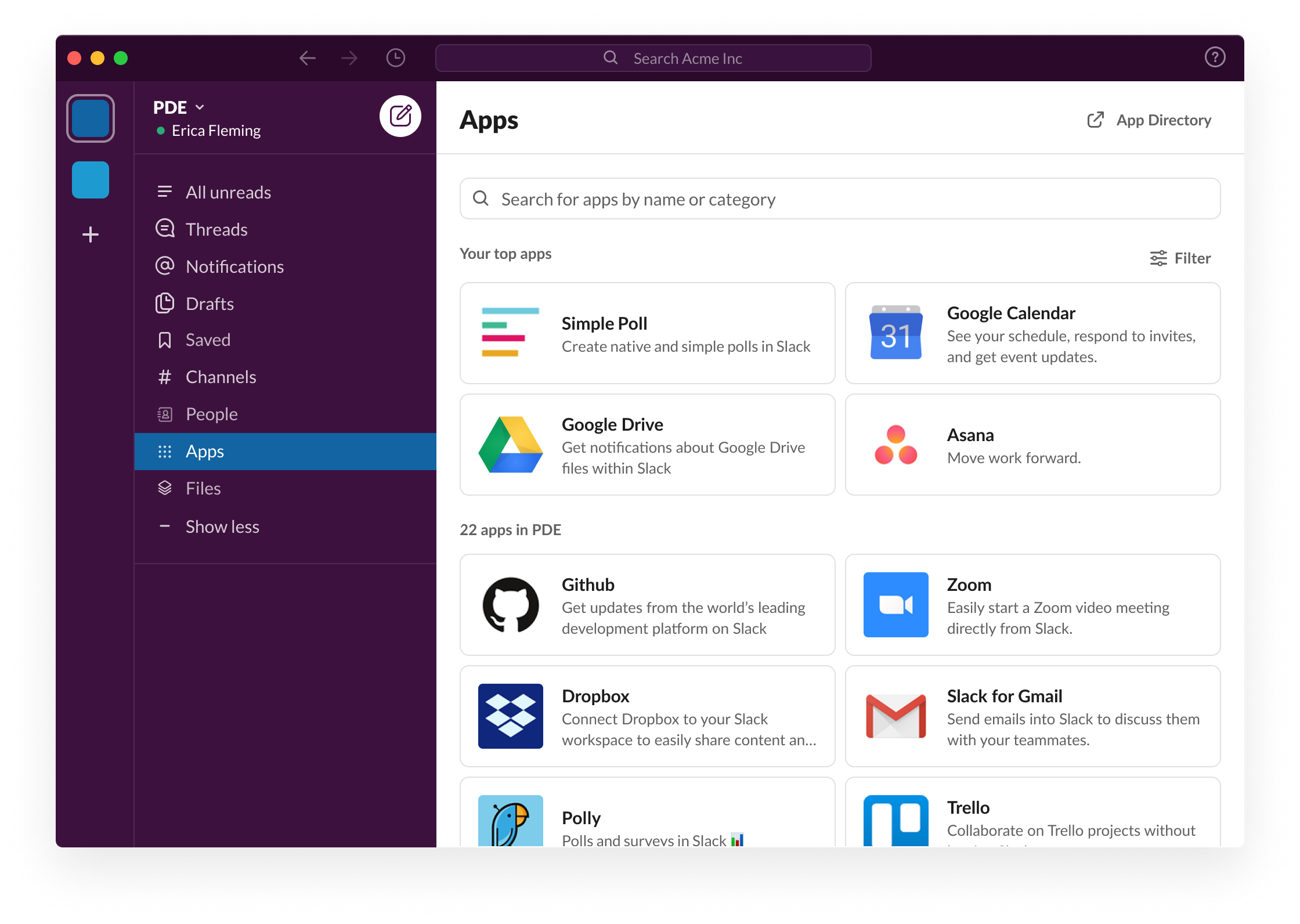
What I recommend for teams on Slack Pro or Business+ plans: connect Slack to your existing identity provider rather than managing Slack-specific MFA. This centralizes your authentication stack and reduces the chance of gaps. You should also review your SaaS security configuration checklist to catch similar integration opportunities across other tools.
Step 4: Secure Cloud Infrastructure (AWS, Azure, GCP)
Cloud consoles are the highest-value targets in your stack. A compromised AWS root account or Azure Global Admin can result in catastrophic data loss, ransomware deployment, or massive unexpected billing.
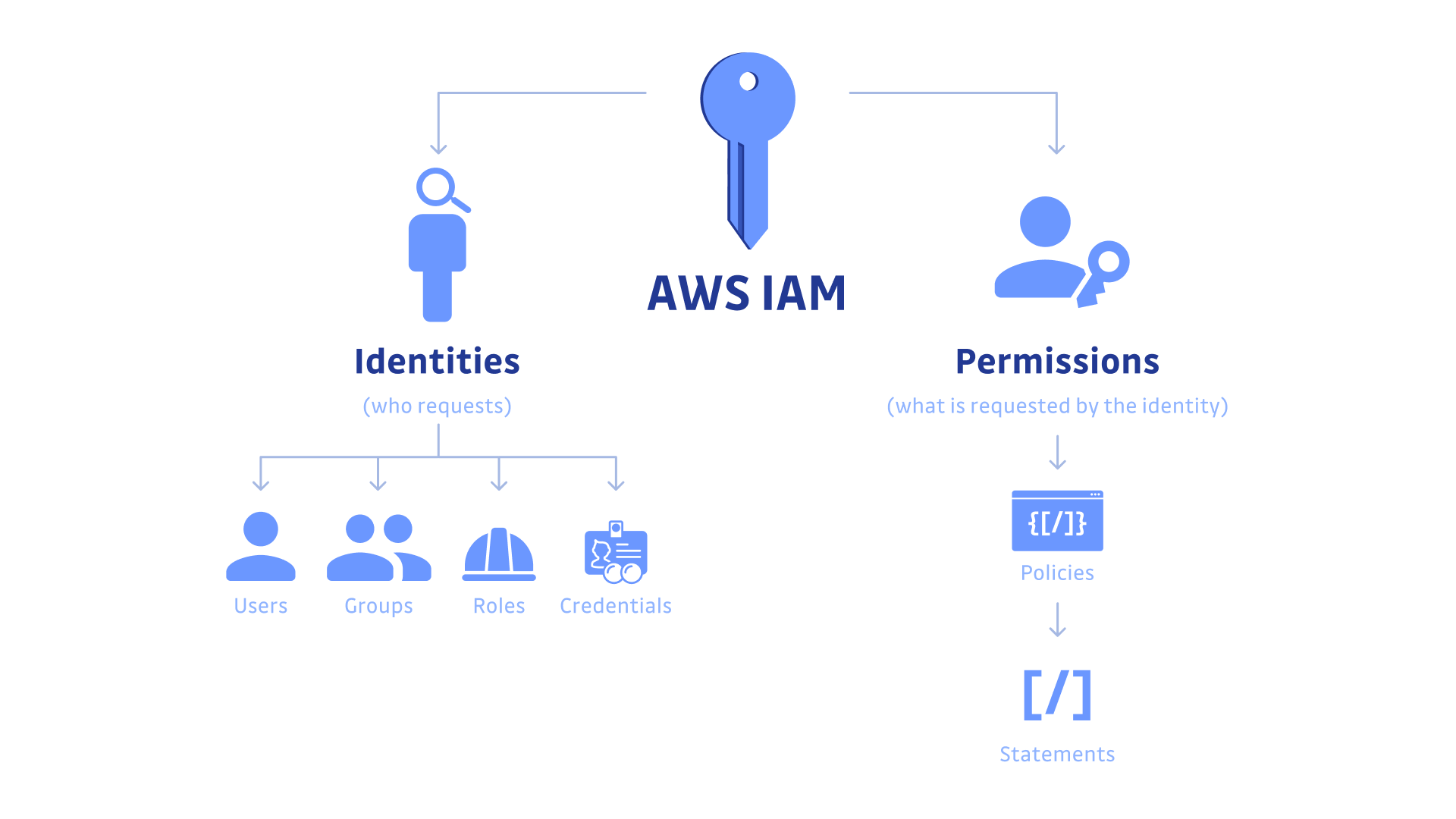
AWS IAM MFA Setup
- Sign into the AWS Management Console and go to IAM → Users.
- Select each user and under Security credentials, click Assign MFA device.
- Choose Authenticator app (TOTP) or Security Key (FIDO2 — preferred).
- For the root account, go to Account Settings and enable MFA separately — this is mandatory, not optional.
- Use AWS IAM policy conditions to require MFA for sensitive API actions using the aws:MultiFactorAuthPresent condition key.
Azure and GCP
For Azure, MFA enforcement flows through Microsoft Entra ID Conditional Access (covered in Step 1). For Google Cloud Platform, enforce 2-Step Verification at the Google Workspace org level — GCP inherits it automatically for users signing in with their Workspace identity.
For any cloud platform, also consider reviewing your cloud infrastructure security hardening guide to address privilege escalation risks beyond MFA alone.
Step 5: Choose the Right MFA Method for Each Risk Level
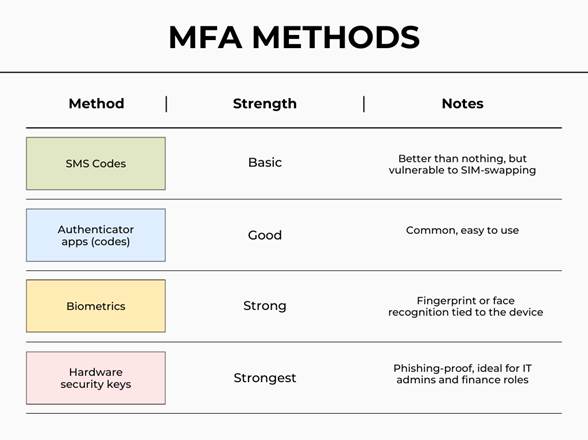
Not all MFA methods are equal. Matching the authentication method to the risk level of the account is a core principle in NIST SP 800-63B digital identity guidelines.
MFA Method Risk Tiers
- Highest security (admins, finance, executives): FIDO2 hardware security keys (YubiKey, Google Titan). Phishing-resistant by design.
- High security (standard employees): Authenticator apps with TOTP (Microsoft Authenticator, Google Authenticator, Authy). Resistant to most attacks.
- Acceptable (low-risk, legacy systems only): Push notifications with number matching. Mitigates MFA fatigue attacks.
- Avoid where possible: SMS OTP. Vulnerable to SIM-swapping and SS7 interception attacks.
For teams managing a mixed environment, a identity and access management policy template can help you formalize which MFA tier applies to which role — making audits and onboarding significantly easier.
Rollout Best Practices: Avoiding Common Pitfalls
Technical configuration is only half the battle. A poorly communicated MFA rollout generates helpdesk tickets, user frustration, and sometimes shadow workarounds that undermine security entirely.
- Communicate early: Send a 2-week notice explaining what’s changing, why it matters, and how to set up their authenticator app.
- Use report-only mode first: Both Microsoft Entra and Google Workspace offer monitoring modes. Use them to identify users who will be locked out before enforcement goes live.
- Create a recovery process: Define how users reset MFA if they lose their device. This should involve identity verification, not just a helpdesk ticket.
- Test with a pilot group: Roll out to IT staff first, then department by department.
- Document service accounts: Non-human accounts (CI/CD pipelines, API integrations) can’t use interactive MFA. Use managed identities, service principals, or certificate-based auth instead.
Key Takeaways
- Use Conditional Access in Microsoft Entra ID for flexible, policy-driven Microsoft 365 MFA enforcement.
- Disable SMS-only MFA for admin and executive accounts — use FIDO2 hardware keys or authenticator apps.
- Connect Slack and other SaaS tools to your central identity provider (SSO) so MFA is enforced at one authoritative layer.
- AWS root accounts and cloud console admins require MFA as a hard requirement — no exceptions.
- Match MFA method to account risk tier per NIST SP 800-63B guidelines.
- Always run in report-only/monitoring mode before enforcing MFA organization-wide.
- Plan for service accounts and non-human identities separately — they need certificate or managed identity solutions, not TOTP.
Frequently Asked Questions
What is the difference between MFA and 2FA?
Two-factor authentication (2FA) is a subset of multi-factor authentication that uses exactly two factors. MFA is the broader term encompassing any combination of two or more factors: something you know (password), something you have (authenticator app or hardware key), or something you are (biometrics). In practice, most business implementations are technically 2FA, but the terms are often used interchangeably in vendor documentation.
Is SMS-based MFA still acceptable for business use in 2026?
SMS OTP is better than no MFA, but it is no longer considered adequate for business accounts by most security frameworks, including NIST SP 800-63B. SIM-swapping attacks and SS7 network vulnerabilities make SMS a weak second factor. For any account with access to sensitive data or administrative privileges, migrate to an authenticator app or hardware security key as soon as operationally feasible.
How do I handle MFA for shared accounts or service accounts?
Shared human accounts should be eliminated where possible — they create accountability gaps and complicate MFA enrollment. For service accounts and automated processes, use platform-native solutions: AWS IAM Roles with managed policies, Azure Managed Identities, or Google Workload Identity Federation. These approaches authenticate workloads without requiring interactive MFA while maintaining strong cryptographic security.
What happens if an employee loses their MFA device?
Every organization needs a documented MFA recovery procedure before enforcement goes live. Best practice involves a multi-step identity verification process — typically a video call with IT plus a manager approval — before resetting MFA credentials. Avoid allowing helpdesk staff to reset MFA based solely on an email request, as this creates a social engineering vulnerability. Also, encourage employees to register a backup MFA method (e.g., both an authenticator app and a hardware key) during initial enrollment.
Does enabling MFA affect productivity or cause user friction?
Initial adoption does involve a learning curve, typically lasting one to two weeks. However, modern MFA implementations significantly reduce friction through features like number matching push notifications, passwordless sign-in (where the authenticator app replaces the password entirely), and session persistence on trusted devices. Microsoft Authenticator and Google Workspace both support passwordless flows in 2026 that many users find faster than typing a password. The long-term productivity cost of a breach far outweighs the short-term adjustment period.